
BinPlus
Professional ECU Binary File & Map Calibration Map Management
Work with binary files, calibration maps, ECU projects and version comparisons in one place.
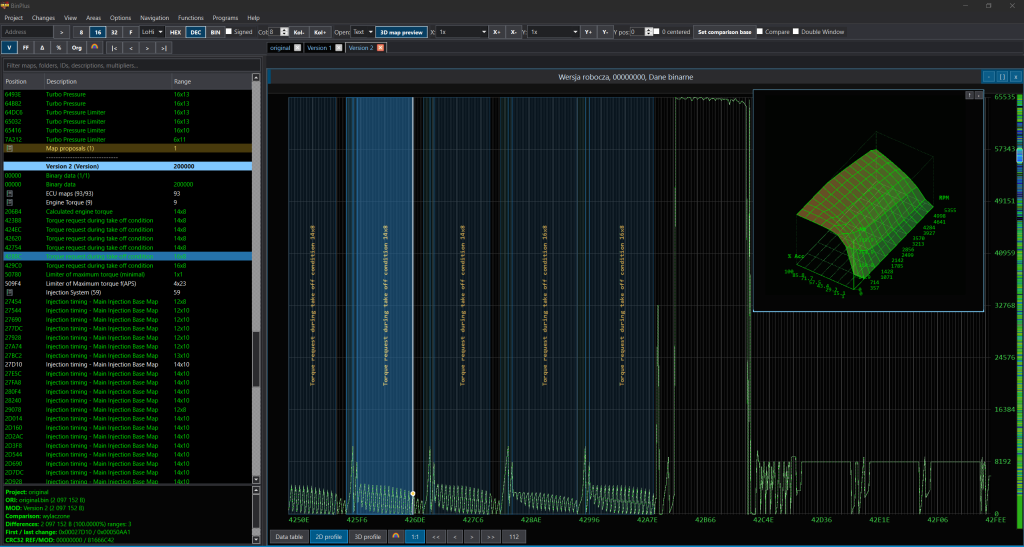
BinPlus License Lifetime Net price: EUR about 490 or PLN 2130
✓ ECU map management
✓ A2L / DAMOS support
✓ Difference comparison
✓ Log analysis
✓ 1 year of free updates included
✓ Renewal updates: only €49/year
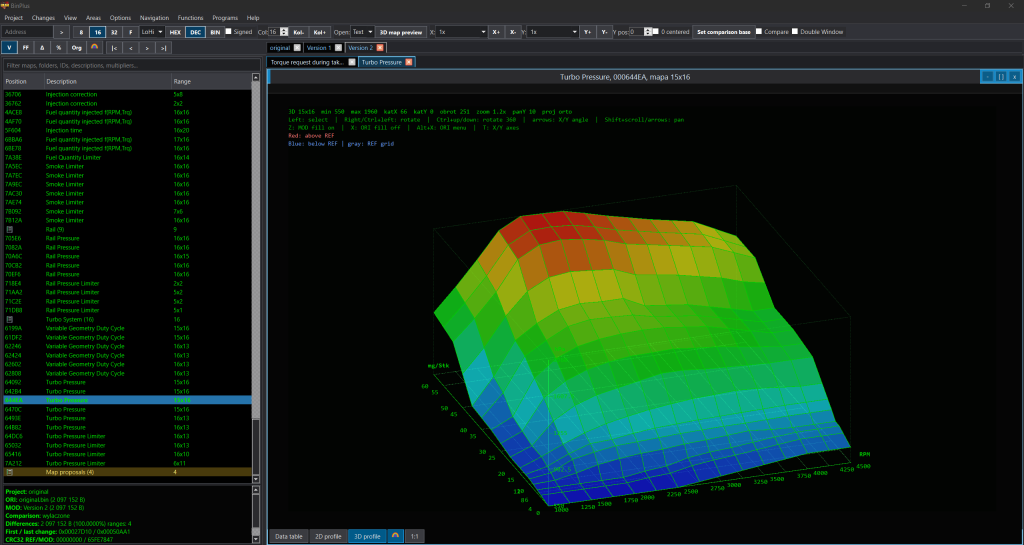
BinPlus Professional Suite
The Complete ECU Calibration Ecosystem
BinPlus is a professional ECU calibration and binary file management platform designed for tuners, calibration engineers, automotive software developers, and performance workshops.
Unlike traditional map editors that focus only on binary file modification, BinPlus provides a complete ecosystem for ECU project management, map analysis, data logging, performance calculations, gearbox optimization, and calibration workflow automation.
All tools included in the BinPlus Suite are fully integrated and designed to work together as a single platform, helping professionals save time, reduce errors, and improve tuning efficiency.
Whether you are working on Stage 1 calibrations, advanced custom tuning projects, OEM calibration development, or daily workshop tasks, BinPlus provides everything you need in one place.
Why BinPlus?
Modern ECU tuning requires much more than simply editing maps.
Professional tuners constantly switch between binary files, calibration maps, datalogs, torque models, airflow calculations, gearbox calculations, different project versions, and customer vehicles.
BinPlus brings all these tasks together into a unified workflow.
Instead of using multiple disconnected applications, BinPlus allows you to manage your entire tuning process from one professional environment.
This means faster development, improved consistency, and significantly reduced calibration errors.
BinPlus Core Application
Professional Binary File Management
BinPlus is the heart of the entire suite.
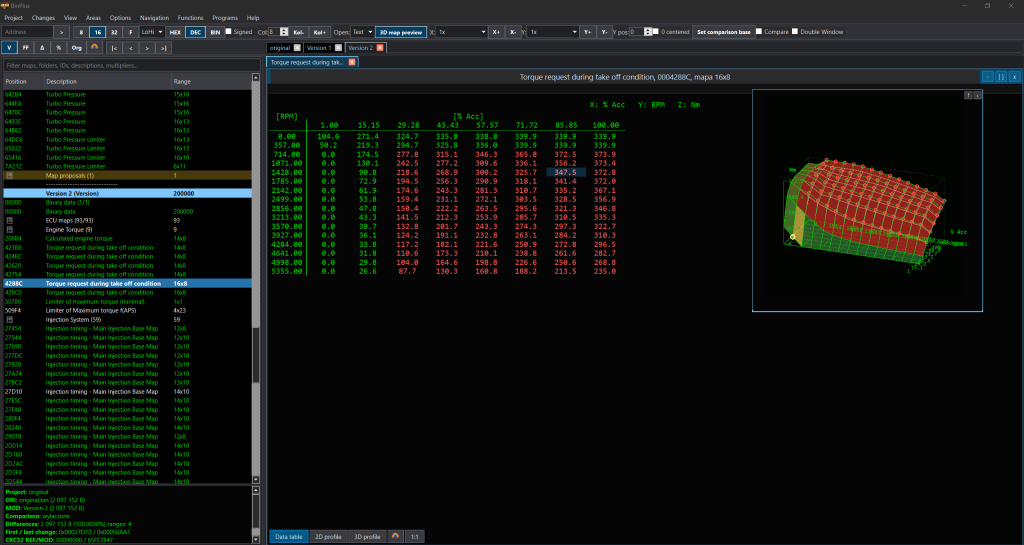
The software allows you to work with binary ECU files, calibration projects, and tuning data using modern visualization and analysis tools.
Main features include:
✓ Binary file analysis
✓ ECU project management
✓ Calibration map management
✓ Automatic map identification
✓ Advanced 2D map visualization
✓ Advanced 3D map visualization
✓ Real-time map editing
✓ Version management
✓ Difference comparison between files
✓ Original vs Modified comparison
✓ Multi-project workflow
✓ Structured ECU project organization
✓ Professional workspace for daily tuning operations
Advanced Map Analysis
Understanding calibration maps quickly is critical for efficient tuning.
BinPlus provides multiple visualization methods that allow engineers to identify map structures and calibration strategies in seconds.
Features include:
✓ Interactive 2D profiles
✓ Interactive 3D map visualization
✓ Color-coded map rendering
✓ Adjustable scaling
✓ High-speed navigation
✓ Side-by-side map comparison
✓ Visual difference highlighting
✓ Binary structure visualization
✓ Data pattern recognition
✓ Professional calibration workflow support
A2L and DAMOS Support
For professional calibration projects, BinPlus supports A2L and DAMOS description files.
Benefits include:
✓ Faster map identification
✓ Improved workflow efficiency
✓ Accurate parameter descriptions
✓ Better project organization
✓ OEM-level calibration support
Project Version Control
Professional tuning often requires multiple versions of the same project.
BinPlus allows engineers to organize and compare different project revisions with ease.
Features include:
✓ Multiple project versions
✓ Original file storage
✓ Revision comparison
✓ Difference tracking
✓ Change management
✓ Fast project navigation
Integrated Applications
One of the most powerful advantages of BinPlus is the complete integration between all included applications.
Unlike standalone tools, all companion applications are directly connected to BinPlus projects.
Calculations, analysis results, and optimization data are automatically transferred into the BinPlus workflow.
There is no need to manually copy values between applications.
The entire calibration process remains synchronized and organized.
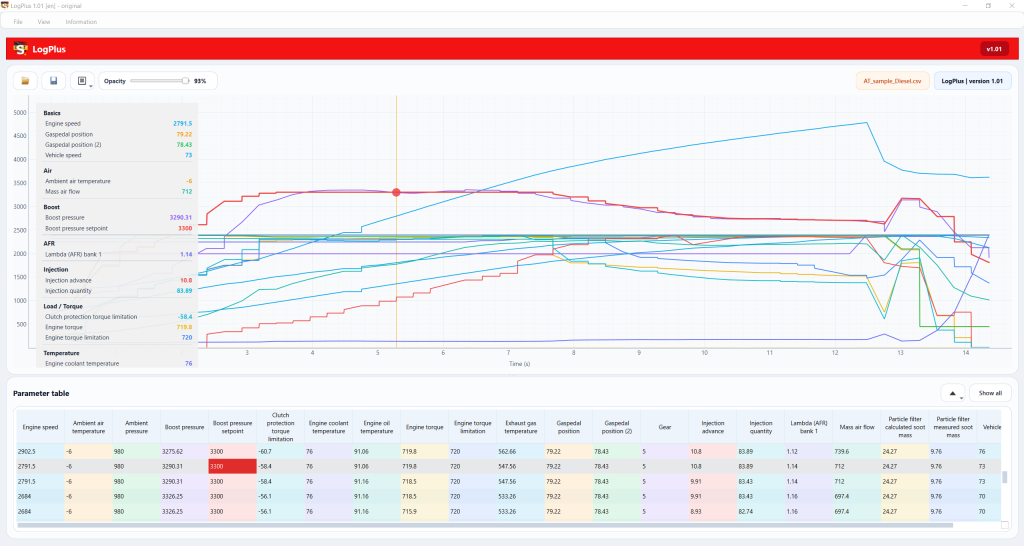
LogPlus Professional Datalog Analysis
LogPlus is fully integrated with BinPlus and provides advanced datalog analysis capabilities.
Import ECU logs and instantly visualize critical engine parameters.
Features include:
✓ CSV datalog import
✓ Multi-channel graph visualization
✓ Interactive charts
✓ Real-time cursor tracking
✓ Parameter tables
✓ Boost analysis
✓ Airflow analysis
✓ Lambda analysis
✓ Torque analysis
✓ Injection analysis
✓ Temperature analysis
✓ Turbocharger diagnostics
✓ Engine performance validation
✓ Calibration verification
LogPlus enables tuners to quickly identify performance limitations, calibration issues, and optimization opportunities.
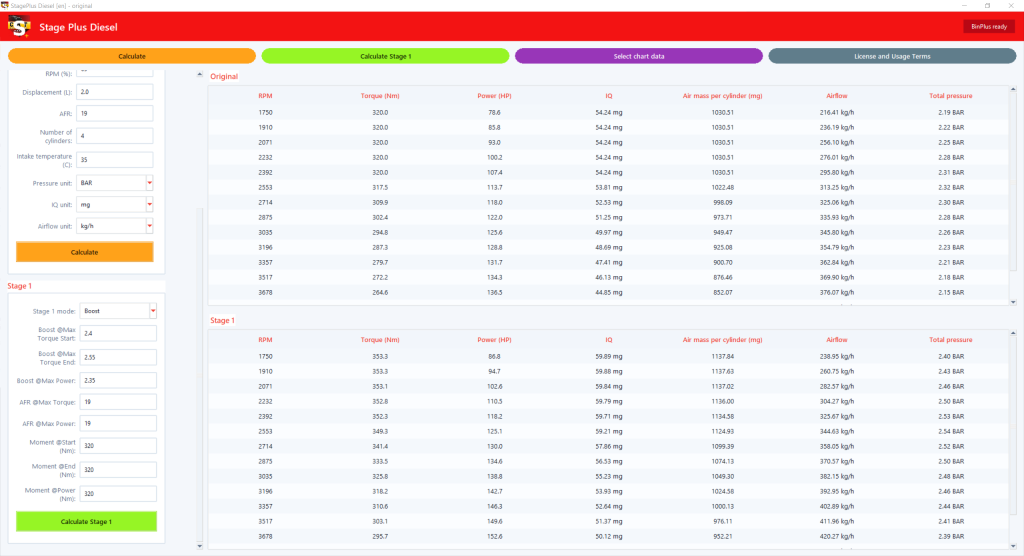
StagePlus Diesel Professional Diesel Tuning Calculator
StagePlus Diesel is a dedicated diesel calibration assistant integrated directly with BinPlus.
It helps engineers estimate realistic tuning results before modifying ECU calibrations.
Features include:
✓ Torque estimation
✓ Power estimation
✓ Airflow calculations
✓ Boost calculations
✓ AFR calculations
✓ Injection quantity calculations
✓ Turbocharger analysis
✓ Stage 1 simulation
✓ Diesel performance modeling
✓ Calibration planning
By using StagePlus Diesel, tuners can predict performance outcomes and create safer, more reliable calibration strategies.
StagePlus PETROL Professional Diesel Tuning Calculator
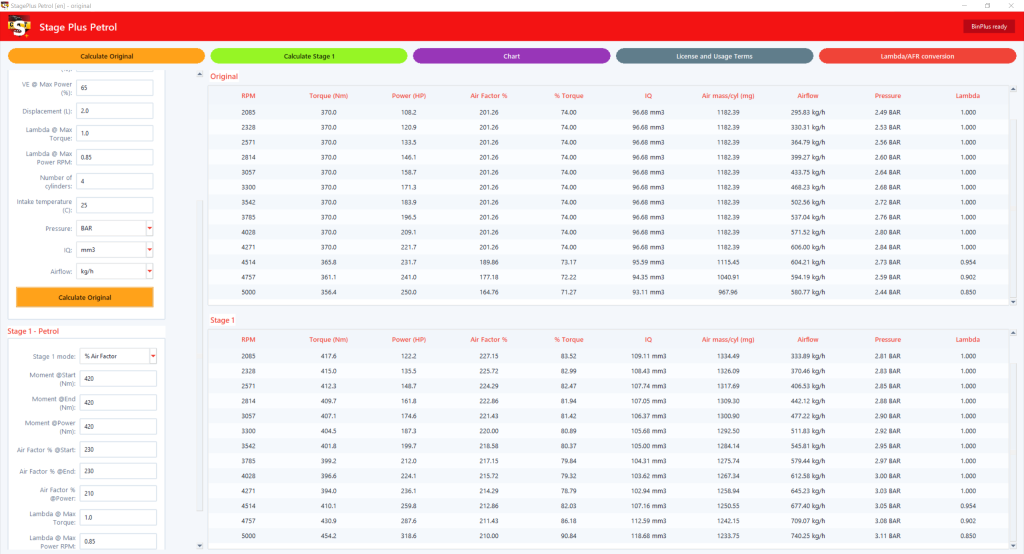
StagePlus Petrol is specifically designed for gasoline engines and performance projects.
Features include:
✓ Torque calculations
✓ Horsepower calculations
✓ Lambda calculations
✓ AFR analysis
✓ Airflow calculations
✓ Pressure calculations
✓ Stage 1 simulation
✓ Power curve estimation
✓ Performance forecasting
✓ Calibration validation
The software helps engineers evaluate tuning concepts before modifying ECU maps.
ShiftPlus
Gearbox Optimization Platform
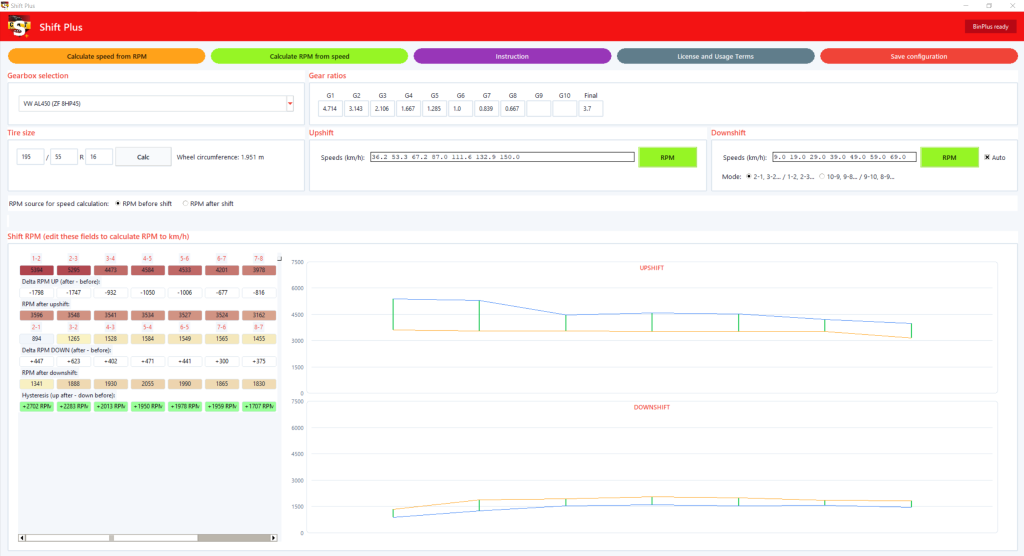
ShiftPlus assists calibration engineers working with automatic and dual-clutch transmissions.
The software simplifies gearbox analysis and shift strategy optimization.
Features include:
✓ RPM-to-speed calculations
✓ Speed-to-RPM calculations
✓ Gear ratio calculations
✓ Upshift optimization
✓ Downshift optimization
✓ Shift RPM calculations
✓ Shift hysteresis analysis
✓ Gearbox calibration support
✓ Visual shift charts
✓ Automatic transmission workflow tools
ShiftPlus significantly reduces the time required to optimize transmission calibrations.
Full Integration with BinPlus
The greatest strength of the BinPlus ecosystem is integration.
LogPlus, StagePlus Diesel, StagePlus Petrol, and ShiftPlus are not standalone applications disconnected from your workflow.
They are designed as companion tools that work directly with BinPlus projects.
Benefits include:
✓ Unified workflow
✓ Shared project structure
✓ Automatic data synchronization
✓ Direct integration with BinPlus projects
✓ Faster development process
✓ Reduced human error
✓ Consistent calculations
✓ Better calibration decisions
✓ Improved productivity
The result is a complete ECU calibration environment where every tool contributes to the same project.
License Information
✓ Lifetime software license
✓ Software never stops working after one year
✓ 12 months of free updates included
✓ Optional update renewal only €49 per year
✓ No mandatory subscription
✓ No monthly fees
✓ Instant license generation
✓ Automatic Owner Key generation
✓ Automatic email delivery after purchase
✓ Fast activation process
Designed for Professionals
BinPlus is built for people who work with ECU software every day.
Whether you run a tuning company, develop custom calibrations, analyze datalogs, or manage multiple customer projects, BinPlus provides the professional tools required to streamline your workflow.
From binary file analysis to datalog validation, from power calculations to gearbox optimization, BinPlus delivers a complete calibration ecosystem trusted by professionals.
One platform.
One workflow.
Everything connected.
✅ Below are videos about the basic features of BinPlus.
BinPlus 0.18 – User Manual
This document describes the current BinPlus version 018.
It is written for end users and covers the main program functions, menus, toolbars,
project handling, map editing, comparisons, DTC MultiMap, helper programs, LogPlus
integration, active axes in map views, and keyboard shortcuts.
BinPlus is an educational tool for BIN file analysis, ECU map work, version comparison,
and organized project preparation. Always work on copies of files and save changes as
separate project versions.
- First Launch and Activation
- Run BinPlus_0_18.exe.
- On first launch, select the interface language.
- Read the license agreement. Without accepting it, the program will not proceed to activation.
- In the activation window, enter the license data or activation code.
- After successful activation, BinPlus saves local activation data and opens the main window.
The license agreement appears after language selection but before activation. Acceptance
is saved locally for the given agreement version.
- Default Files and Folders
By default, BinPlus saves projects in the projects folder next to the program.
In the source version, this is:
C:\BinPlus_018\projects
If Windows does not allow data to be saved next to the program, BinPlus falls back to
the user’s AppData folder.
Main file types:
Type | Use |
.bin | ECU binary file, project base, or working version. |
.bplus | BinPlus project with metadata, maps, versions, and logs. |
.json | BinPlus/MapPlus mappack. |
.csv | Map list or difference export. |
.a2l, .dam | Damos/A2L data for map import. |
.txt, .dtc, .csv | DTC code scripts for DTC MultiMap. |
- Main Window Layout
The main window consists of several areas:
Area | Description |
Menu bar | Access to all project, import, export, editing, view, comparison, and helper program functions. |
Main toolbar | Quick address, data format, column count, X/Y scale, comparison mode, and view setting controls. |
Data mode toolbar | V/FF/Delta/%/Org buttons, difference navigation, rainbow 3D, and the Marker maps switch. |
Project tree | Binary data, ECU maps, map proposals, user maps, and versions. |
Data/map area | View of the active BIN or map: data table, HEX, 2D profile, or 3D profile. |
Double Window | Optional fixed data table synchronized with the active view. |
Difference table | List of detected differences between the base and working versions. |
Status bar | Import, save, active license, difference, and current operation messages. |
- Basic Workflow
- Create a new project from a BIN file: Project > Open > New project or Alt+N.
- Fill in project parameters: Alt+P.
- Import maps from A2L, JSON mappack, CSV, or a similar project; transfer changes from another version with ChangeSet.
- Open a map from the project tree with a double-click or Enter.
- Check the data format: 8/16/32/Float, HiLo/LoHi, HEX/DEC/BIN, signed mode, and column count.
In version 0.18, you can set the default map opening view to Text, 2D, or 3D. - Make changes in the working version.
- Compare differences, navigate through them, and copy selected changes if needed.
For longer analysis, enable Double Window to keep a permanently synchronized data table. - Save the project or save it as a new version.
- Export a BIN, BIN package, JSON mappack, or CSV.
- Projects and Project Database
New Project
The New project function creates a BinPlus project from a BIN file. After loading the
file, the program creates the base project version and lets you add a working version.
Project Database
Project > Open > Open project database… opens the project search window. In the
database, you can:
Function | Description |
Search | Searches project data, vehicle, ECU, software, versions, and names. |
Location | Selects one project folder or all added locations. |
Add folder | Adds a new folder for project indexing. |
Remove folder | Removes the selected location from the list. It does not delete projects from disk. |
Refresh | Re-indexes the selected location. |
Delete project | Deletes the selected project from the database and disk after confirmation. |
Double-click/OK | Opens the selected project. |
The project database table shows, among other fields, project status, vehicle type,
manufacturer, model, engine, ECU, software, number of maps, number of versions, logs,
and version names.
Similar Projects
After folders are indexed, BinPlus can search for similar projects based on BIN content.
Use:
Function | Shortcut | Description |
Find similar projects | Ctrl+Alt+P | Shows projects similar to the currently opened BIN. |
Import mappack from similar project | Ctrl+Alt+J | Lets you select a similar project and import maps from it. |
Import ChangeSet changes | Ctrl+Alt+G | Transfers map value changes from a ChangeSet file, the current version, or another project. |
Index project folder | Alt+Shift+K | Scans a folder and saves the project index. |
- Project Tree
The project tree shows:
Element | Description |
Binary data | Direct BIN file view. |
ECU maps | Maps imported from A2L, mappack, CSV, or created manually. |
Map proposals | Automatically detected or suggested areas. |
Marker maps | Map proposals detected by the Marker maps scanner, if the MM button is enabled. |
User maps | Maps created from a selection or added manually. |
Project versions | Base version, working versions, and additional project versions. |
Most important tree operations:
Operation | Shortcut/action | Description |
Open map | Enter | Opens the selected map. |
Expand/collapse folder | Space | Expands or collapses a tree folder. |
Map properties | Alt+Shift+P | Opens the selected map parameters. |
Open map in bottom panel | Ctrl+Alt+B | Opens the map in the bottom comparison panel; for a working version, it immediately shows current changes against ORI. |
Collapse all folders | Ctrl+Alt+Left | Collapses folders in the tree. |
Open all folders | Ctrl+Alt+Right | Expands folders in the tree. |
The tree context menu also contains Create folder…, Delete map, Copy / move to folder…,
Rename version…, Close all map windows, and Marker maps options: Add as map,
Synchronize with data, and Show all map descriptions. These operations are available
with the right mouse button on a tree item.
- Data and Map Views
Active data can be viewed in several modes:
Mode | Description |
Data table / Text | Value-by-value view, convenient for precise editing. |
HEX view | Classic byte preview. |
2D profile | Line chart / 2D surface with axes and scaling. |
3D profile | Three-dimensional map preview with rotation, panning, MOD/ORI fill, and difference colors. |
Switching:
Function | Shortcut |
Next data mode | Alt+Right |
Previous data mode | Alt+Left |
Rotate X/Y axes | T |
Default 2D 16 columns | Ctrl+Alt+6 |
Default 2D 32 columns | Ctrl+Alt+7 |
Default 2D 64 columns | Ctrl+Alt+8 |
Active axes in data table | Ctrl+Alt+Y |
Active LogPlus values | Ctrl+Alt+L |
Active axes in the data table (Ctrl+Alt+Y) work in the Text/table view of the active map.
When you move the mouse cursor over map cells, BinPlus highlights the corresponding cell
and its X and Y axes. If the axes were rotated with T, the highlight still follows the
real map axes. Axis colors, transparency, and cursor outline settings can be changed in
Options > Settings.
Active LogPlus values (Ctrl+Alt+L) reads the current cursor position from the LogPlus
chart and highlights the corresponding position in the active map. This function requires
an open map and at least one cursor movement over the LogPlus chart; it does not work in
HEX view.
3D profile controls:
Function | Shortcut/action |
Reset 3D angle and offset | Home |
Toggle MOD fill | Z |
Toggle ORI fill | X |
Rotate map X/Y axes | T |
Change X/Y angle | arrow keys |
360-degree rotation | Ctrl+arrow keys |
Pan 3D view | Shift+arrow keys or Shift+mouse wheel |
Mouse rotation | right mouse button or Ctrl+left mouse button |
Select cell | left mouse button |
Rainbow 3D fill | rainbow icon in the map window or on the data mode toolbar |
Floating 3D preview of active map | 3D map preview on the menu/main toolbar, no shortcut |
- Main Toolbar
The main toolbar lets you quickly set how data is interpreted:
Control | Description |
Address + > | Go to the entered address/offset. |
8, 16, 32, F | Data width: 8-bit, 16-bit, 32-bit, Float. |
HiLo / LoHi | Byte order. |
HEX, DEC, BIN | Number system in the data view. |
Signed | Interpret values as signed. |
Col: | Column count in table/HEX/2D. |
Col-, Col+ | Decrease or increase the column count. |
Open: | Default view for newly opened maps: Text, 2D, or 3D. |
3D map preview | Shows a floating 3D preview window for the active map. |
X, X+, X- | Horizontal scale of the 2D profile. |
Y, Y+, Y- | Vertical scale of the 2D profile. |
Y pos | Vertical offset of the 2D profile. |
0 centered | Shows the zero axis in the center of the 2D profile. |
Comparison | Enables/disables difference analysis. |
Double Window | Enables a fixed data table synchronized with the active view. |
Set comparison base | Opens comparison settings. |
Second toolbar, Data mode:
Control | Description |
V | Shows map values after the conversion factor. |
FF | Shows raw BIN data without conversion. |
Delta | Shows differences against the base file. |
% | Shows percentage change against the base file. |
Org | Shows the value from the base project version. |
Rainbow icon | Toggles rainbow 3D profile fill according to map min/max values. |
` | <, <, >, > |
MM | Enables/disables automatic Marker maps proposals. |
- Project Properties
Project parameters… (Alt+P) opens project data. You can describe, among other things:
Group | Fields |
Project | Project name, client, client number, project state, project type, language. |
Vehicle | Vehicle type, manufacturer, series, model, model year, VIN, registration plate. |
ECU | ECU use, ECU manufacturer, ECU family, ECU number, processor. |
Software | Software, SW version, address offset. |
Engine | Engine type, displacement, power. |
Project security | Project status and password protection, if the license owner has permission for it. |
Filling these fields well improves searching in the project database and similar projects.
- Map Properties
Map properties… (Alt+Shift+P) opens map definition editing. The most important
tabs and fields are:
Tab/field | Description |
Map / Z axis | Name, description, start address, rows x columns, map type, folder. |
Data | Data width, byte order, signed mode, number system, skip bytes, skip bytes per row. |
View | Default map tab: Text, 2D, or 3D. |
Conversion | Unit, multiplier, offset, number of decimal places. |
X axis | Axis source, axis address, manual values, data width, stride, and conversion. |
Y axis | Same as X axis, but for the vertical axis. |
Comment | Map note. |
Tools | Helper options: automatically fit value range on open and open the map after saving. |
Options on the Tools tab:
Option | Action |
Automatically fit value range on open | After saving, the program recalculates min/max from real map Z values. When enabled, the 2D/3D view can fit the scale to map data. |
Open map after saving | After clicking OK, the map will immediately be opened or activated in the project. It works when creating a new map and when editing an existing definition. |
If automatic range fitting is disabled, the map keeps the saved value range and uses it
as a locked scale for the profile/3D view.
- Value Editing
Editing works on the active map or active data view.
Function | Shortcut | Description |
Edit selected value | Enter | Opens editing for the active cell. |
Increase value | +, =, Shift+= | Increases the selected cell or selection. Holding the key accelerates the change. |
Decrease value | -, _ | Decreases the selected cell or selection. Holding the key accelerates the change. |
Increase by 10 steps | PageUp | Faster upward change. |
Decrease by 10 steps | PageDown | Faster downward change. |
Undo change | Ctrl+Z | Undoes the last edit operation. |
Restore from base version | Alt+R | Restores original values for the selection/map. |
Recalculate matrix | Alt+Shift+M | Opens matrix value editing. |
Change by percentage | Alt+Shift+5 | Changes selected values by percentage. |
Limit changed values | Alt+Shift+O | Limits changed values to a range. |
Smooth map surface | Alt+Shift+U | Smooths the selected map surface. |
Change similar maps | Alt+Shift+Z | Transfers changes or ORI values from the active map to similar maps. |
Change Similar Maps
Change similar maps (Alt+Shift+Z) is used to work on maps with the same size and
similar Z values. The function works for the active project version.
In the main dialog:
Option | Action |
Z difference tolerance | The slider defines how large a Z value difference is allowed when searching for similar maps. The higher the tolerance, the more maps can be shown. |
Transfer changes | Transfers changes from the source map to the selected similar maps. |
Restore original | Restores the selected similar maps from project ORI, meaning from the original file used to create the project. It does not copy values from the source map. |
Transfer to all / Restore all | Selects all found maps for the chosen operation. |
After selecting Transfer changes, the Change transfer method window appears:
Method | Action |
Percentage | Transfers the same percentage change as in the source map. |
As difference | Transfers the same numeric difference, for example +1.00. |
Absolute one to one | Writes the exact resulting value from the source map into the similar map. |
For the Percentage and As difference modes, choose the reference point:
Reference point | Action |
Current version – include existing changes | The percentage or difference is applied to the current values in the working version. If a similar map was already raised, the new change is calculated from that raised value. |
Project ORI – calculate from original values | The percentage or difference is calculated from the original ORI file values for the target map. Existing changes in the working version are then overwritten with the result calculated from ORI. |
Notes:
- If the source map has cells changed against ORI, only those changed cells are transferred.
- If the source map has no changes against ORI, Transfer changes copies ORI values from the source map to the selected similar maps.
- Absolute one to one does not use a reference point because it writes a concrete resulting value.
- Green entries in the similar maps list mean maps matching ORI, while bright/bold entries mean maps that already have changes against ORI.
Copying:
Function | Shortcut |
Copy values | Alt+C |
Copy address | Alt+A |
Copy map pattern | Ctrl+Shift+C |
Paste map pattern | Ctrl+Shift+V |
- Area Selection
Function | Shortcut | Description |
Rectangular selection | Alt+7 | Selects a rectangular block. |
Linear selection | Alt+8 | Selects a continuous data range. |
Select visible range | Ctrl+Alt+S | Selects the currently visible range. |
Select changed areas | Alt+Shift+C | Selects places that differ from the base. |
Clear selection | Alt+Delete | Clears the selection. |
Create map from area | Alt+K | Creates a new map definition from the selected range. |
Synchronize maps | Alt+Y | Synchronizes active maps/views. |
Format autoadapt | Alt+Shift+Y | Automatically adapts format when opening maps. |
Column count autoadapt | Alt+Shift+L | Automatically adapts the column count. |
2D profile height autoadapt | Alt+Shift+H | Automatically adapts the 2D chart height. |
The selection mode applies to the active map view and to maps opened in the bottom panel.
Alt+7 enables rectangular selection, while Alt+8 returns to linear selection. After
opening a map in the bottom panel, BinPlus preserves the selected mode, so you can work
immediately on cell blocks or on a continuous data range.
- Comparison and Difference Analysis
Comparison is used to work on the base version, working version, and additional versions.
You can add a file for difference analysis or open a project version.
Function | Shortcut | Description |
Add file for difference analysis | Alt+M | Loads a second BIN for comparison. |
Load BIN as project version | Ctrl+Alt+M | Adds a BIN as a project version. |
Difference analysis active | Ctrl+Alt+C | Enables/disables comparison mode. |
Difference | Alt+D | Shows differences against the base. |
Percentage | % | Shows percentage change. |
Base values | Ctrl+Alt+1 | Shows ORI/base values. |
Working values | Ctrl+Alt+2 | Shows working values. |
Raw data | Alt+Shift+R | Shows raw BIN data. |
First difference | Alt+Home | Jumps to the first difference. |
Previous difference | Alt+PageUp | Jumps to the previous difference. |
Next difference | Alt+PageDown | Jumps to the next difference. |
Last difference | Alt+End | Jumps to the last difference. |
The comparison panel also contains:
Element | Description |
Offset | Manual comparison offset matching. |
-1 / +1 | Moves the matching offset by one step. |
Result | Counter of found differences/hits. |
Top/Bottom or Left/Right | Counters and hit buttons for the current selection in both panels. |
Similar | Searches for similar structures using a 70-100% similarity threshold. |
L/R | Switches comparison layout to left/right. |
Sync | Synchronizes scrolling and the active map. |
Copy | Copies the selection between panels. Right-click opens copy settings. |
Set | Opens comparison settings. |
Panel-to-panel copying works in comparison mode. In copy settings, you can choose whether
to copy only colored changes, values from the selection, and whether to transfer the map
definition and keep its folder.
Open map in bottom panel is used to quickly compare the same map definition in the
lower part of the window. If the map in the active version was already changed, the
bottom panel shows working MOD values and differences against ORI immediately after
opening the map, without requiring another click or cell edit.
- Navigation and Search
Function | Shortcut | Description |
Go to address | Alt+G | Sets focus to the address field. |
Find address/value | Ctrl+F | Opens the search window. |
Next map | Ctrl+Alt+Down | Goes to the next map. |
Previous map | Ctrl+Alt+Up | Goes to the previous map. |
Find similar structures | Alt+Shift+F | Searches for similar or identical blocks. |
Edit binary data as text | Ctrl+T | Opens binary data in a text/HEX editor. |
- Map And Change Import
Function | Shortcut | Description |
Add Damos/A2L data | Alt+I | Imports maps from .a2l, .dam files. |
Shift Damos/A2L maps | Ctrl+Alt+I | Helper function for correcting map positions after import. |
Add JSON map package | Alt+J | Imports a JSON mappack. |
Import mappack from similar project | Ctrl+Alt+J | Finds a similar project and imports its mappack. |
Import ChangeSet changes | Ctrl+Alt+G | Creates or loads a ChangeSet and transfers map value changes. |
Add CSV map list | Alt+Shift+I | Imports a map list from CSV. |
Find similar projects | Ctrl+Alt+P | Shows similar projects in the index. |
Index project folder | Alt+Shift+K | Creates/refreshes the project index. |
Marker maps | none | The MM button enables automatic map proposals based on BIN data. |
ChangeSet – Map Value Change Import
Import ChangeSet changes (Ctrl+Alt+G) transfers changes from one project version to another. A ChangeSet file uses the .bpcs extension and stores changed map cells, not map definitions like a mappack.
In the first dialog choose the source:
Source | Action |
Load ChangeSet file | Uses a previously saved .bpcs file. |
Create ChangeSet from current project version | Compares ORI with the active working version and creates a set of changes. |
Create ChangeSet from BinPlus project | Lets you select another .bplus project and choose its working version as the change source. |
When creating and importing, choose map matching by Map ID, Map name, or Map ID + name. If a project contains repeated names or IDs, BinPlus matches repeated maps by their order.
The second dialog shows the number of found maps, ID found and Name found checkboxes, missing maps for the selected match mode, and the transfer method for each map:
Method | Action |
Percent | Applies the same percentage change to the current target map value. |
Difference | Adds the same numeric difference, for example +1.00, to the target map. |
Absolute | Writes the resulting value stored in the ChangeSet. |
The Set all buttons choose a method for all maps, but each map row can still be changed separately. Import creates or updates the project working version and can be undone with Ctrl+Z.
A2L import asks for:
Option | Description |
A2L address base | For example 0x80000000, 0xA0000000, 0xC0000000. |
Map correction | Offset for imported maps in bytes, for example +2, +4, +8. |
- Export
Function | Shortcut | Description |
Export BIN file | Alt+Shift+B | Saves the selected version as BIN. |
Export BIN package | Alt+Shift+X | Exports a BIN pair/package. |
Export MapPack JSON | Alt+Shift+J | Saves map definitions to JSON. |
Export maps CSV | Alt+Shift+E | Saves the map list to CSV. |
In version 0.18, Export BIN file opens a file selection window for export:
you can select ORI, the active working version, and available project versions.
Mappack and CSV export require the project to have data/metadata that allows maps to be saved.
- DTC MultiMap
Functions > DTC MultiMap… (Ctrl+Alt+D) opens the tool for working with DTC tables.
Main elements:
Element | Description |
DTC tab1 | Main OBD/P/U code table. |
DTC tab2/OEM | Second code table, often OEM. |
DTC class | Class/status table. |
DTC mask | Enable/disable mask table. |
Individual 1/2/3 | Additional bit/individual tables. |
Active | Enables the given table for reading and writing. |
Rows | Number of table rows. Default is 1068. |
16-bit | Order/format for 16-bit tables. |
Status | View filter: all/active/inactive. |
Auto search | Tries to automatically find known tables. |
Refresh | Recalculates the table after address changes. |
Reset settings | Clears DTC MultiMap settings for the active file. |
Filter | Searches by code, HEX, DEC, description, and status. |
Find | Searches entered codes, for example P0402 P3138 U1113. |
Load code script | Loads a code list from a file. |
Save code script | Saves the OFF code script. |
Disable codes | Writes OFF values to active tables. |
Working with DTC:
- Open a project or BIN.
- Start DTC MultiMap.
- Use Auto search or enter table addresses manually.
- Select the active tables that should be read and modified.
- Enter DTC codes or load a script.
- Use Find, then Disable codes.
- Check the changes in the project and save the version.
- Helper Programs
The Programs menu starts external modules and passes them the active project context,
if available.
Program | Shortcut | Use |
LogPlus | Alt+Shift+0 | Log analysis, passing the active project, and linking the LogPlus cursor with the active BinPlus map. |
StagePlus Petrol | Alt+Shift+1 | Help for petrol projects. |
StagePlus Diesel | Alt+Shift+2 | Help for diesel projects. |
ShiftPlus | Alt+Shift+3 | Helper tool for shifting/processing data. |
MapPlus – generate mappack online | Alt+Shift+4 | Sends the BIN to the MapPlus service and imports the generated mappack. |
StagePlus suggestions for active map | Alt+Shift+S | Shows StagePlus suggestions for the active map. |
LogPlus Connection
BinPlus 0.18 can work with LogPlus in both directions: it passes the active project/log
to LogPlus, and then it can read the current cursor position from the LogPlus chart and
show it on the actively opened map.
Typical workflow:
- Open the project and the map you want to analyze.
- Start Programs > LogPlus (Alt+Shift+0) or open a saved log through
Project > Open > Open log from project. - In LogPlus, load or select a log and move the cursor over the chart so the current
cursor position is saved. - In BinPlus, right-click the active map and choose LogPlus positioning for active map.
The item is labeled in the menu as Ctrl+Shift+L. - In the positioning window, select which map axis is the RPM axis, which LogPlus column
contains RPM, and which second column corresponds to the X/Y axis or map Z value. - Enable View > Active LogPlus values (Ctrl+Alt+L). From now on, moving the cursor
over the LogPlus chart will highlight the corresponding cell and axes of the active
map in BinPlus.
LogPlus column settings are remembered. If BinPlus does not show the log position, move
the cursor over the LogPlus chart again, check the selected columns, and make sure the
active map has defined X/Y axes.
- Options, Language, Updates, and Help
Function | Shortcut | Description |
Settings | Ctrl+, | Opens color and view behavior settings. |
Language | none | Changes the interface language. |
Check for updates | none | Checks for a new version based on the license. |
About BinPlus | F1 | Shows program and license information. |
In settings, you can change, among other things, colors of map outlines, X/Y axes, fills,
map overlays, active map in the tree, map in the data table, active axes, active cell,
selection, transparency, and outline thickness.
- Mouse and Wheel Operation
Place | Action | Effect |
Map tree | Double-click / Enter | Opens a map. |
Map tree | Right mouse button | Context menu for maps/folders/project. |
Data view | Double-click | Activates/edits the selected value or map under the cursor. |
Text/table map view | Mouse cursor movement over a cell | With active axes enabled, highlights the cell and its X/Y axis. |
2D view | Mouse wheel | Scrolls the view. |
2D view | Ctrl + wheel | Changes horizontal/X scale. |
2D view | Shift + wheel | Changes vertical/Y scale. |
2D view | Alt + wheel | Fast scrolling. |
Text/HEX view | Ctrl + wheel | Changes text zoom. |
Text/HEX view | Alt + wheel | Fast data scrolling. |
HEX view | Alt + click on <<, <, >, >> | Faster movement of visible pages. |
3D view | Left mouse button | Selects a map cell/point. |
3D view | Right mouse button or Ctrl + left mouse button | Rotates the 3D preview. |
3D view | Shift + wheel | Pans the 3D preview. |
- Text/HEX/3D Shortcuts
Shortcut | Effect |
Q | Toggles the text profile in text view. |
Shift+Left | Moves the preview start/origin left. |
Shift+Right | Moves the preview start/origin right. |
Ctrl+T | Opens binary data editing as text. |
Home | Resets angle and offset in 3D view. |
Z | Toggles MOD fill in 3D view. |
X | Toggles ORI fill in 3D view. |
Arrow keys | Change X/Y angle in 3D view. |
Ctrl+arrow keys | Rotate the model in 360-degree mode in 3D view. |
Shift+arrow keys | Pan the preview in 3D view. |
- Full Menu Shortcut List
Project
Function | Shortcut |
New project | Alt+N |
Load BinPlus project | Ctrl+Alt+O |
Open project database | Alt+B |
Open project version | Alt+Shift+V |
Open log from project | none |
Load BIN file | Alt+O |
Add file for difference analysis | Alt+M |
Load BIN as project version | Ctrl+Alt+M |
Save project | Alt+S |
Save as new version | Ctrl+Shift+S |
Add Damos/A2L data | Alt+I |
Shift Damos/A2L maps | Ctrl+Alt+I |
Add JSON map package | Alt+J |
Import mappack from similar project | Ctrl+Alt+J |
Import ChangeSet changes | Ctrl+Alt+G |
Add CSV map list | Alt+Shift+I |
Find similar projects | Ctrl+Alt+P |
Index project folder | Alt+Shift+K |
Export BIN file | Alt+Shift+B |
Export BIN package | Alt+Shift+X |
Export MapPack JSON | Alt+Shift+J |
Export maps CSV | Alt+Shift+E |
Project parameters | Alt+P |
Version parameters | Alt+V |
Map properties | Alt+Shift+P |
Open map in bottom panel | Ctrl+Alt+B |
Close project | Alt+Q |
Close BinPlus | Alt+F4 |
Collapse all folders | Ctrl+Alt+Left |
Open all folders | Ctrl+Alt+Right |
Changes
Function | Shortcut |
Undo change | Ctrl+Z |
Copy values | Alt+C |
Copy address | Alt+A |
Copy map pattern | Ctrl+Shift+C |
Paste map pattern | Ctrl+Shift+V |
Increase value | + |
Decrease value | – |
Recalculate matrix | Alt+Shift+M |
Change values by percentage | Alt+Shift+5 |
Map properties | Alt+Shift+P |
Restore from base version | Alt+R |
Change similar maps | Alt+Shift+Z |
Limit changed values | Alt+Shift+O |
Smooth map surface | Alt+Shift+U |
View
Function | Shortcut |
Next data mode | Alt+Right |
Previous data mode | Alt+Left |
Rotate X/Y axes | T |
Move preview start left | Shift+Left |
Move preview start right | Shift+Right |
Fewer columns | M |
More columns | W |
Column count field | L |
2D 16 columns | Ctrl+Alt+6 |
2D 32 columns | Ctrl+Alt+7 |
2D 64 columns | Ctrl+Alt+8 |
Enlarge cells | Alt+Up |
Shrink cells | Alt+Down |
Restore 2D scale | Alt+0 or Ctrl+0 |
Active axes | Ctrl+Alt+Y |
Active LogPlus values | Ctrl+Alt+L |
3D map preview | none |
Difference analysis active | Ctrl+Alt+C |
Difference | Alt+D |
Percentage | % |
Base values | Ctrl+Alt+1 |
Working values | Ctrl+Alt+2 |
Raw data | Alt+Shift+R |
First difference | Alt+Home |
Previous difference | Alt+PageUp |
Next difference | Alt+PageDown |
Last difference | Alt+End |
3D Profile
Function | Shortcut |
Reset 3D view | Home |
MOD fill | Z |
ORI fill | X |
X/Y angle | Arrow keys |
360-degree rotation | Ctrl+arrow keys |
Preview offset | Shift+arrow keys |
Areas
Function | Shortcut |
Rectangular selection | Alt+7 |
Linear selection | Alt+8 |
Select visible range | Ctrl+Alt+S |
Select changed areas | Alt+Shift+C |
Clear selection | Alt+Delete |
Create map from area | Alt+K |
Synchronize maps | Alt+Y |
Format autoadapt | Alt+Shift+Y |
Column count autoadapt | Alt+Shift+L |
2D profile height autoadapt | Alt+Shift+H |
Options
Function | Shortcut |
Settings | Ctrl+, |
Language | none |
Navigation
Function | Shortcut |
Edit binary data as text | Ctrl+T |
Find address/value | Ctrl+F |
Go to address | Alt+G |
Next map | Ctrl+Alt+Down |
Previous map | Ctrl+Alt+Up |
Find similar structures | Alt+Shift+F |
Functions
Function | Shortcut |
Difference table | Alt+U |
DTC MultiMap | Ctrl+Alt+D |
Programs
Function | Shortcut |
LogPlus | Alt+Shift+0 |
StagePlus Petrol | Alt+Shift+1 |
StagePlus Diesel | Alt+Shift+2 |
ShiftPlus | Alt+Shift+3 |
MapPlus – generate mappack online | Alt+Shift+4 |
StagePlus suggestions for active map | Alt+Shift+S |
Help
Function | Shortcut |
Check for updates | none |
About BinPlus | F1 |
- Drag and Drop
BinPlus supports dragging files:
File | Effect |
BIN onto an empty window/project | Creates or opens a project from BIN. |
BIN onto the version area | Adds BIN as a project version. |
JSON mappack | Imports a mappack. |
CSV maps | Imports a CSV map list if the file looks like a map list. |
- Best Practices
- Always work on a copy of the BIN file.
- Do not overwrite the base version. Save changes as a new project version.
- After A2L import, check several maps manually: address, dimensions, data type, LoHi/HiLo, and signed mode.
- Before BIN export, check the difference table and go through the first and last difference.
- For DTC, use Find first, then Disable codes.
- After making changes, save the project first and only then export the BIN.
- If the project should be searchable in the database, fill in vehicle and ECU parameters.
- Common Problems
Problem | What to do |
Projects are not visible in the database | Check Location, add a folder, and use Refresh or Index project folder. |
Maps from A2L are shifted | Repeat import with map correction, for example +2, +4, +8, or change the A2L address base. |
Values look wrong | Check 8/16/32/Float, LoHi/HiLo, signed mode, and HEX/DEC/BIN. |
Comparison shows wrong differences | Check the comparison offset and whether you are comparing the correct versions. |
DTC MultiMap does not find anything | Use Auto search, check table addresses, row count, and active tables. |
Active axes are not highlighted | Check whether Text/table view of the active map is enabled, whether the map has X/Y axes, and whether Ctrl+Alt+Y is active. |
Active LogPlus values show nothing | Move the cursor over the LogPlus chart, set active map positioning, and enable Ctrl+Alt+L. The function does not work in HEX. |
Map in the bottom panel does not show changes | Check that BinPlus 0.18 is running and that the map is opened from the active working version. The bottom panel should show MOD/ORI changes immediately after opening. |
Rectangular selection cannot be selected | Use Alt+7 in the active map. Alt+8 switches back to linear selection. The mode is also carried over to the map opened in the bottom panel. |
Helper program does not start | Check whether the package contains the programs folder with the given helper and whether antivirus software is not blocking the EXE. |
